
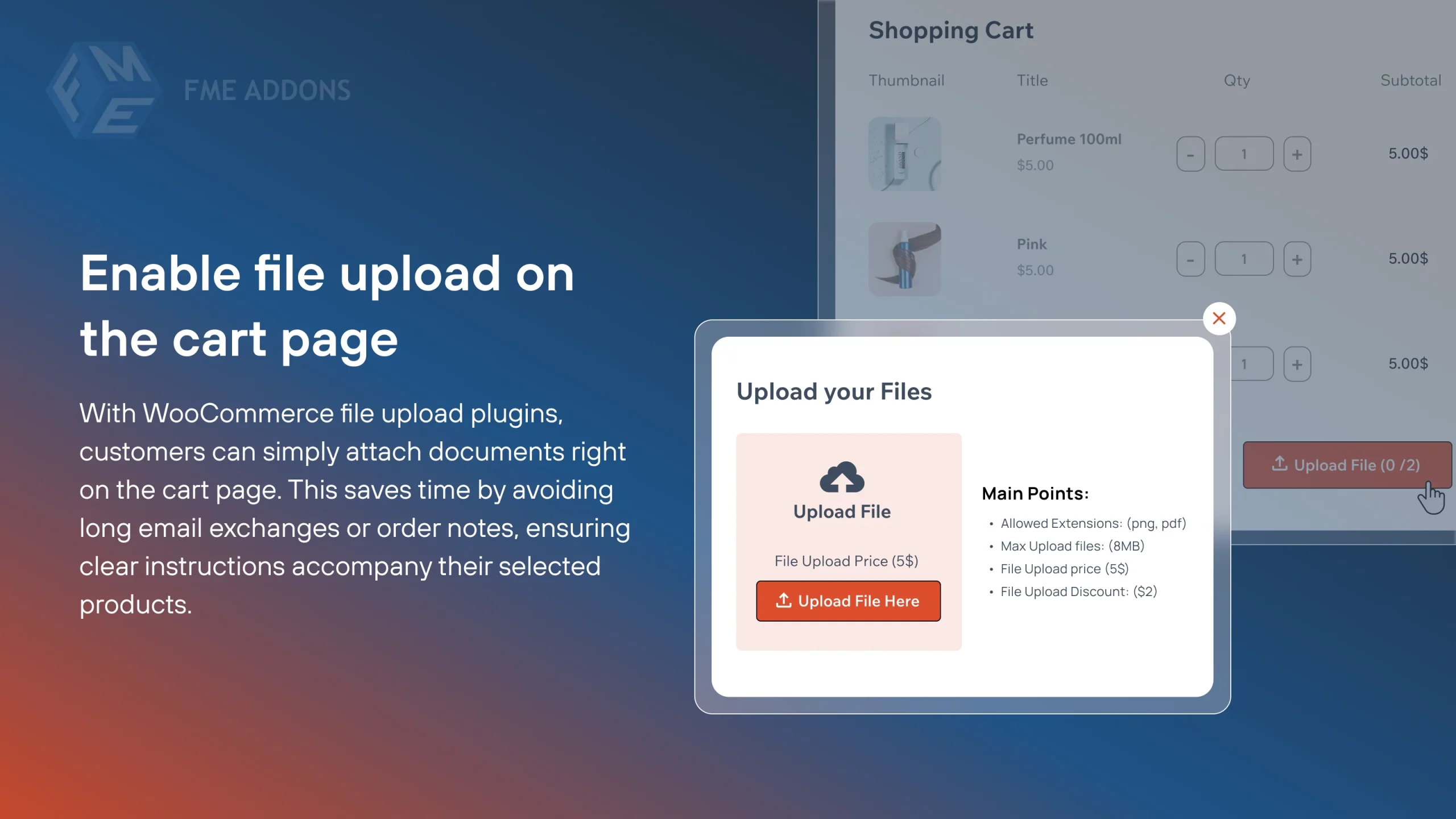
Selling customized products online often requires customers to submit images, documents, logos, or other files before the order can be processed. For example, a print shop might need artwork for a poster, a clothing store selling custom shirts might require a design file, or a photo store might need a reference image. If this is the scenario for you, then the WooCommerce upload file can be pretty handy.
Instead of asking customers to send files through email after placing an order, store owners can simply add a file upload option directly to the product page or checkout page. Customers upload their files during the buying process, and the file automatically gets attached to the order.
However, once you allow uploads, it becomes important to control how those files are submitted. Some customers may upload extremely large files, unsupported formats, or too many attachments. In other cases, store owners may want to charge extra when customers upload files because processing them requires additional work.
A good upload file WooCommerce plugin provides both restrictions and pricing controls. You can limit file types, control file size, restrict the number of uploads, and even charge customers a fee for attaching files. In this guide, we will walk through how store owners can configure these restrictions and fees step by step.
What Exactly are File Upload Restrictions?
Before configuring the settings, it helps to understand why upload restrictions are necessary. When customers are allowed to upload files without limits, a few common problems appear quickly.
- Large files may overload the server storage.
- Unsupported formats may not open correctly for printing or design processing.
- Customers might upload unnecessary files that complicate order handling.
Restrictions allow store owners to keep uploads organized and manageable. By setting clear limits, customers know exactly what type of file they need to submit.
Most plugins designed for WooCommerce upload file management include these controls inside their rule configuration panel. Once configured, the system automatically blocks files that do not meet the requirements.
Setting up File Upload Restrictions Step-by-Step
Below is a practical walkthrough showing how these restrictions are usually configured inside a file upload plugin.
Step 1: Create an Upload Rule
Most file upload plugins work through rule systems. A rule determines where the upload option appears and what restrictions apply.
To create a rule:
• Navigate to the plugin settings panel
• Click Add New Rule
• Enter a rule name for identification
• Enable the rule
Now you can define where customers will see the upload option.
Common display locations include:
• Product page
• Cart page
• Checkout page
• Thank you page
• Customer account page
Store owners can select one or multiple locations depending on how their ordering process works.
Step 2: Restrict Allowed File Types
Not all file formats are suitable for customization products. Some may not open properly or could create compatibility issues.
Inside the rule settings, you can specify allowed file extensions.
Common file types include:
• JPG
• PNG
• PDF
• PSD
• AI
When these restrictions are set, the system automatically rejects files that do not match the allowed formats. Customers will see an error message explaining that the file type is not supported.
This helps ensure that the files submitted are actually usable.
Step 3: Set Maximum File Size Limits
Large uploads can create problems for server performance and storage. To prevent this, store owners can define a maximum file size.
Inside the upload settings, you will find a field labeled maximum upload size.
Enter the file size limit, such as 5MB or 10MB, depending on your needs.
If a customer attempts to upload a file larger than the allowed size, the plugin will block the upload and display a warning message.
This simple restriction protects the store from unnecessary storage issues.
Step 4: Limit the Number of Files Per Order
Sometimes customers upload several files even when only one is required. Too many attachments can make order processing confusing.
To control this, most plugins include a maximum file limit.
Inside the rule settings:
• Set the minimum number of files required
• Set the maximum number of files allowed
For example, a printing store might require at least one file but allow up to three files for different design versions.
This keeps the order manageable while still giving customers some flexibility.
Step 5: Add Upload Notes or Instructions
Another helpful restriction option is the ability to display instructions near the upload button.
You can add a short message such as:
• “Upload a high-resolution image only.”
• “Accepted formats are JPG or PNG.”
• “Maximum file size allowed is 5MB.”
These instructions guide customers before they upload their files, reducing errors during the ordering process.
Charge Fees for File Uploads
In many cases, handling uploaded files requires extra work. Designers may need to adjust files, convert formats, or prepare them for printing. Because of this, store owners often charge an additional fee when customers upload files.
The Checkout Files Upload for WooCommerce plugin by Extendons typically includes built-in pricing controls for this purpose.
Step 1: Enable Upload Fee Option
Inside the upload rule settings, you will find a pricing or fee section.
Enable the option that allows charging for uploaded files.
Once enabled, you can decide how the fee will be applied.
Step 2: Choose the Fee Type
Most plugins allow two common fee structures.
Fee per file
Each uploaded file adds an additional cost to the order.
Fixed fee per order
A single charge is added regardless of how many files are uploaded.
This flexibility allows store owners to create pricing rules that match their workflow.
Step 3: Set the Fee Amount
After choosing the fee structure, enter the price amount.
For example:
• $2 per uploaded file
• $5 fixed upload handling fee
Once configured, the plugin automatically adds the fee to the customer’s cart when a file is uploaded.
Customers can see this extra charge before completing the purchase.
Step 4: Display Fee Information Clearly
Transparency is important when charging extra fees.
Add a message near the upload field explaining the fee, such as:
“Uploading design files includes a small processing fee.”
This prevents confusion and ensures customers understand why the cost appears in their cart.
Why You Need a File Uploader for WooCommerce
While restrictions and fees might sound strict at first, they actually improve the experience for your customers as well. Take a quick look at the benefits of this plugin, and you might consider having one for your own store too!
• Clear guidelines for file submission
Customers know exactly what type of file is required and how large it should be. This reduces the chances of uploading something unusable.
• Better order accuracy
Restrictions ensure that customers upload files that meet production requirements, which reduces the chance of errors later.
• Simple file submission process
Instead of emailing attachments after placing an order, customers can upload everything directly during checkout.
• Transparent pricing
When upload fees are displayed clearly, customers understand the cost associated with processing their design files.
• Faster order handling
Because the correct files are uploaded the first time, store owners can start processing orders much faster.
Conclusion
Selling customized products through WooCommerce becomes much easier when customers can attach files directly to their orders. A reliable WooCommerce upload file plugin allows store owners to add upload fields across product pages, carts, or checkout pages while keeping everything organized inside the order details.
However, allowing uploads without restrictions can lead to storage problems, unsupported file formats, and confusing orders. By configuring limits on file types, file size, and the number of attachments, store owners maintain control over the files being submitted.
At the same time, charging a reasonable fee for uploaded files can compensate for the additional work involved in preparing those files for production.
With the right setup, an upload file WooCommerce solution not only simplifies customization orders but also creates a smoother experience for both customers and store owners.
